Deal Details
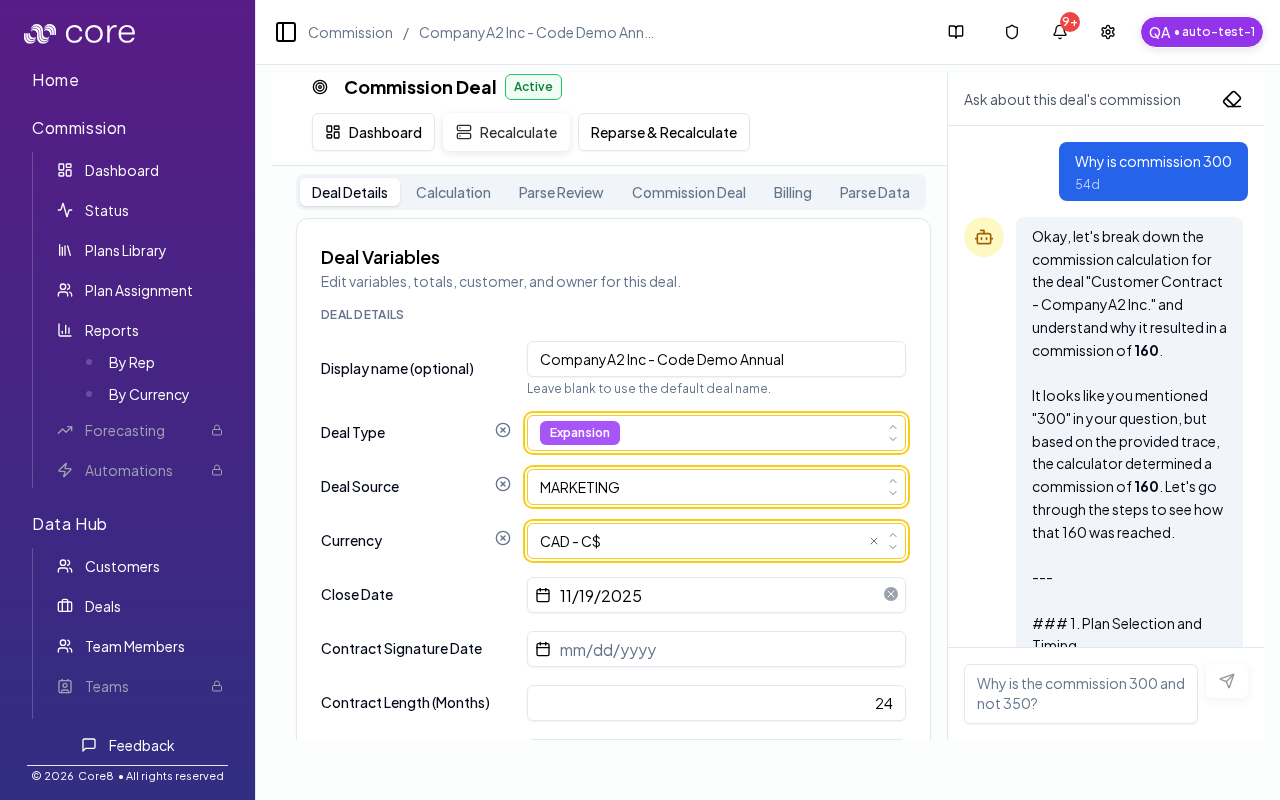
When you need to understand a single deal’s commission context, Deal Details is where you review key dates/variables and ask the AI deal chat questions — even in read-only mode.
What you can do on this page
- Review a deal’s key dates, hierarchy, and variables summary.
- See whether the deal has split parents/children and navigate accordingly.
- Open attached documents (when available) to cross-check inputs.
- Ask the AI deal chat questions about status, plan selection, and gating.
- Understand what is restricted in read-only mode (tabs and actions).
How to open a deal
- Open Commission → Dashboard.
- In the Deals tab, click the deal name.
What you can review
- Deal overview fields like anchor date, invoice date, close date, and contract dates.
- Hierarchy links if the deal has split children or a parent deal.
- The attached plan/deal PDF (when available).
- Variables used by the commission system (shown in the deal’s variable card).
Deal chat (recommended)
Use the chat panel to ask questions like:
- “Why is this deal waiting?”
- “Which date is being used as the anchor date?”
- “Which plan was selected for this deal?”
This AI chat panel is available even in read-only mode. If you need a human follow-up, use the dashboard Deal Discussion thread.
Limits of read-only access
Read-only users stay on the Deal Details tab. If a shared link includes other tabs (Calculation, Parse Review, etc.), the page automatically switches back to Deal Details.
Read-only users can’t run manager actions like Recalculate or Reparse.
How to verify read-only behavior
- Open a shared link to a deal and confirm the page opens to Deal Details (read-only users stay on this tab).
- Confirm the AI deal chat panel is available on the deal page, and use Deal Discussion on the dashboard when you need a human follow-up.
Common issues
- My totals do not match what I expected: confirm you are looking at the right period, then open a deal and use the Calculation view to see plan selection, gates, and effective values.
- A deal is not showing up: clear search/filters and confirm the deal is assigned to you (and in the selected period). Split/child deals may appear under a parent.
- Numbers changed since yesterday: overrides, plan changes, or a recalculation can move amounts; check the deal's audit/history and the calculation snapshot.