

What you can do on this page
- Correct editable deal inputs directly in the dashboard table.
- Create audit-friendly overrides that change effective calculation inputs.
- Use autosave + undo/redo to recover from mistakes quickly.
- Handle common blockers like frozen deals and split parent rows.
- Open the variables sidebar for deeper edits beyond a single cell.
Under the hood
Under the hood
- Writes: inline edits create an override record for the edited field and update the effective value used by calculations.
- Recalculation: changes may require a recalculation to update derived totals/statuses (depending on your org’s behavior and deal state).
- Auditability: overrides remain traceable (who changed what/when) to support investigations and close workflows.
- Common failure modes: frozen deals, split parent rows (non-editable), and autosave failures that go to quarantine.
- How to verify: see How to verify an override took effect below.
- If it fails: use the quarantine banner to retry failed saves; unfreeze the deal or open a child deal if you’re on a non-editable split parent row.
Access
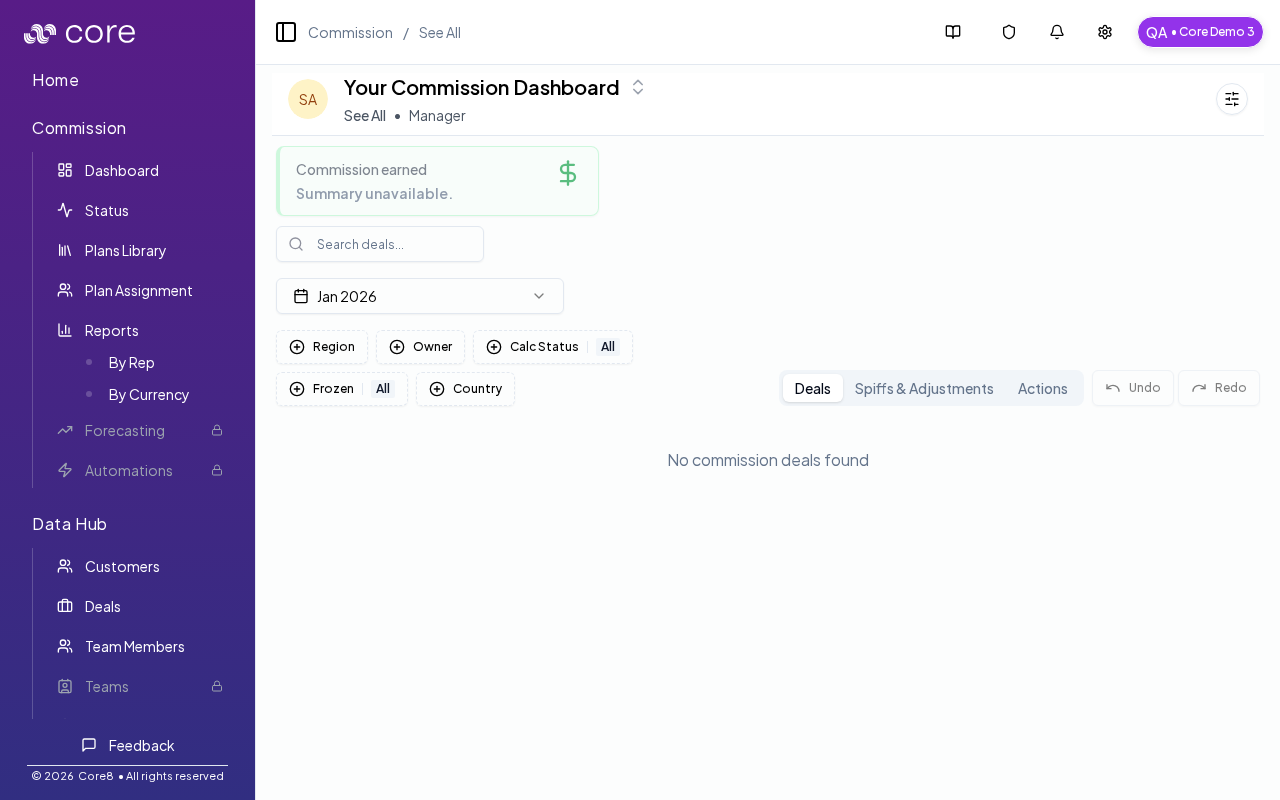
- Open Commission → Dashboard.
- Switch to See All at
/{orgId}/commission?view=all. - If you have view-only access, cells will be read-only.
What “override” means
- Source values come from connected systems (CRM/billing) or uploaded documents.
- User edits are manual changes made in Core8.
- Effective values are what Core8 actually uses for calculation after applying user edits.
How inline editing works
- Find the deal in the Deals table.
- Click into an editable cell (commonly variable columns; other editable columns depend on configuration).
- Enter the new value and blur/confirm the input.
How to verify an override took effect
- Edit a field and confirm the cell shows the saved value (if you see a save error/quarantine banner, resolve that first).
- Refresh the page and confirm the edited value persists.
- Open the deal’s variables sidebar (or the deal detail page) and confirm the field shows as the effective value used for calculation.
- If totals/status don’t update immediately, run (or wait for) recalculation and then refresh; spot-check the deal’s Calculation view to confirm the new input is being used.
Undo/redo and recovery
- Use Undo/Redo controls (and standard keyboard shortcuts like Cmd/Ctrl+Z) to revert recent changes.
- If an autosave fails, changes may be placed into a quarantine state. Use the quarantine banner to retry or dismiss failed saves.
Limits and edge cases
- Frozen deals can’t be edited until unfrozen.
- Parent deals (rows with split children) are shown for grouping, but they are not editable and the dashboard hides “View deal details” for them. Open a child deal for deal details and calculations.
Common issues
- I cannot find a rep or deal: check filters (team/member/status/period) and confirm the person has an active plan assignment for the time range.
- Overrides are disabled: the period or plan may be locked/frozen, or you may lack permission; confirm your role and period state.
- Totals do not reconcile: spot-check a single deal’s Calculation view, then confirm which plan version is approved and which effective values are used.