

What you can do on this page
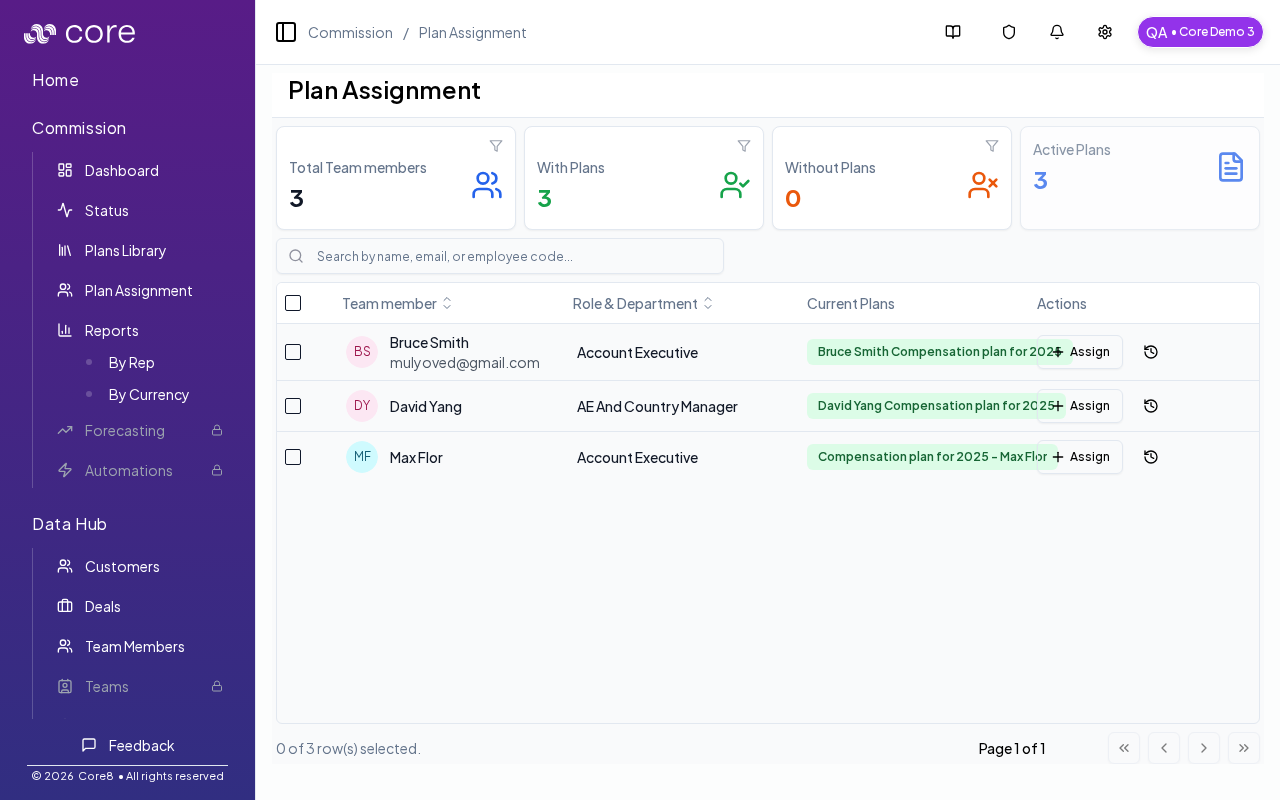
- Assign active public plans to individual reps.
- Bulk-assign plans to many team members in one action.
- Use search and filters to find team members who need assignments.
- Open assignment history for audit/troubleshooting.
- Verify assignment changes when updates take time to propagate.
Under the hood
Under the hood
- Writes: assignment actions create/update plan assignment records for team members.
- Eligibility: only active public plans are offered for assignment in this flow.
- Consistency: results may update after async refresh; re-open the modal or refresh to confirm final state.
- How to verify: see How to verify an assignment is taking effect below.
- If it fails: review permission/validation messages (for example “already assigned”) and retry the failed users.
Access
- Open Commission → Plan Assignment.
- URL:
/{orgId}/commission/plan-assignment
Assign plans to a single rep
- Search for the team member by name, email, or employee code.
- Click Assign for that user.
- Select one or more active plans and confirm.
Bulk assignment
- Select multiple team members in the table (or select all and exclude a few).
- Choose Assign Plans….
- Select the plan(s) to add.
How to verify an assignment is taking effect
- After you assign a plan, reopen Assign (or refresh the table) and confirm the rep’s Current Plans reflect the change.
- Spot-check one known deal for that rep and confirm Calculation → Plan Selection shows the expected plan/version.
- If the wrong plan still applies, check effective dates/overlaps and confirm the plan is active/approved.
Notes
- Only active public plans are offered for assignment.
- If your assignment changes don’t appear immediately, refresh the table or reopen the modal after the mutation completes.
- Use the assignment history icon on a team member row to open the audit/history view for that user’s plan assignments.
Common issues
- A rep is not available to assign: confirm the team member exists in Data Hub and has required fields (email/status) and that you have manager access.
- Assignments do not affect calculations: check assignment effective dates and confirm the plan is active/approved.
- Bulk assignment missed some people: filters (team/status) may be excluding them; clear filters and retry.