

What you can do on this page
- Review commissions across the team in See All mode.
- Switch between See All and a specific rep via the personnel picker.
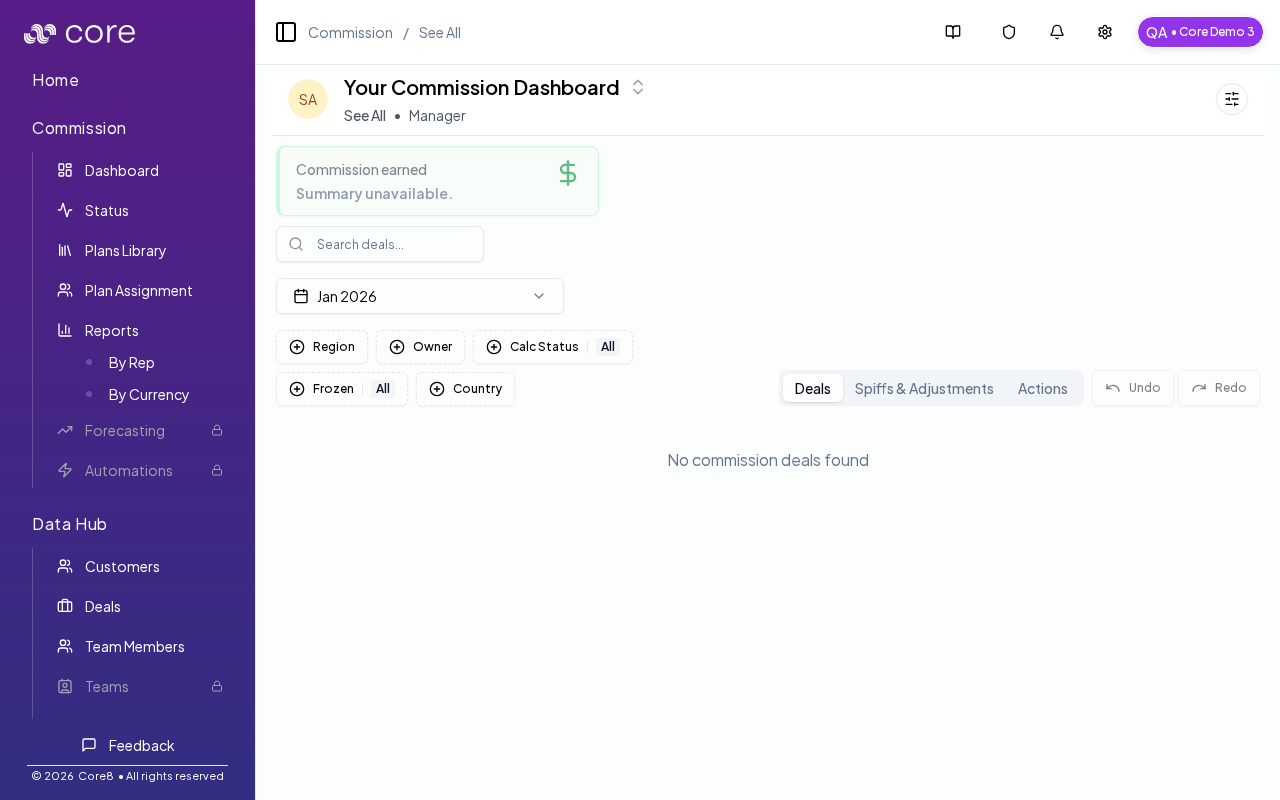
- Review deals, spiffs/adjustments, and action items from the main tabs.
- Export a filtered team view for payroll review or investigation.
- Drill into a deal to investigate inputs and calculation behavior.
Under the hood
Under the hood
- See All: the manager view is enabled by
view=alland aggregates results across multiple team members. - Tabs: the dashboard uses a URL-backed
tabparameter (Deals is the default; other tabs settab=...). - Exports: exports use your current filters and view. Team-wide exports require team-wide commission access.
- How to verify: see How to verify you’re in the manager view below.
- If it looks wrong: confirm the URL includes
view=alland re-check your filters; drill into a deal detail page to validate inputs and status.
Access
- Open Commission → Dashboard.
- If you have team-wide commission access, use See All at
/{orgId}/commission?view=all. - Managers are redirected to See All by default when they open
/{orgId}/commission.
How the manager view works
- The page shows the same dashboard structure (metrics + tabs), but aggregated across multiple team members.
- Use the personnel picker to switch between:
- a specific team member’s dashboard, or
- the team-wide See All view.
Tabs
- Deals: the main table for reviewing commission deals.
- Spiffs & Adjustments: bonus and adjustment activity.
- Actions: items that need attention (exceptions, follow-ups, and operational tasks).
Exports
Exports use your current view and filters. In See All, exports require team-wide commission access.How to verify you’re in the manager view
- Confirm the URL includes
view=all. - Confirm the breadcrumb shows See All.
- In the Deals tab, confirm you see a team member column (so you can tell which rep each deal belongs to).
Common issues
- I cannot find a rep or deal: check filters (team/member/status/period) and confirm the person has an active plan assignment for the time range.
- Overrides are disabled: the period or plan may be locked/frozen, or you may lack permission; confirm your role and period state.
- Totals do not reconcile: spot-check a single deal’s Calculation view, then confirm which plan version is approved and which effective values are used.