

What you can do on this page
- Explain unclear plan calculation text with contextual AI help.
- Propose modifications by selecting text and choosing Modify.
- Keep changes staged as pending until you review and approve.
- Rollback an unwanted modification and continue iterating.
- Clear history or change models when your environment allows it.
Under the hood
Under the hood
- Writes: modify actions can generate pending plan changes tied to the plan.
- Approval boundary: pending changes do not affect deal calculations until approved.
- Auditability: the plan’s pending/approved state keeps a clear separation between draft and live logic.
- How to verify: see How to verify a chat-driven change is staged below.
- If it fails: check the dialog for validation or approval issues, then use the normal approval flow to publish changes.
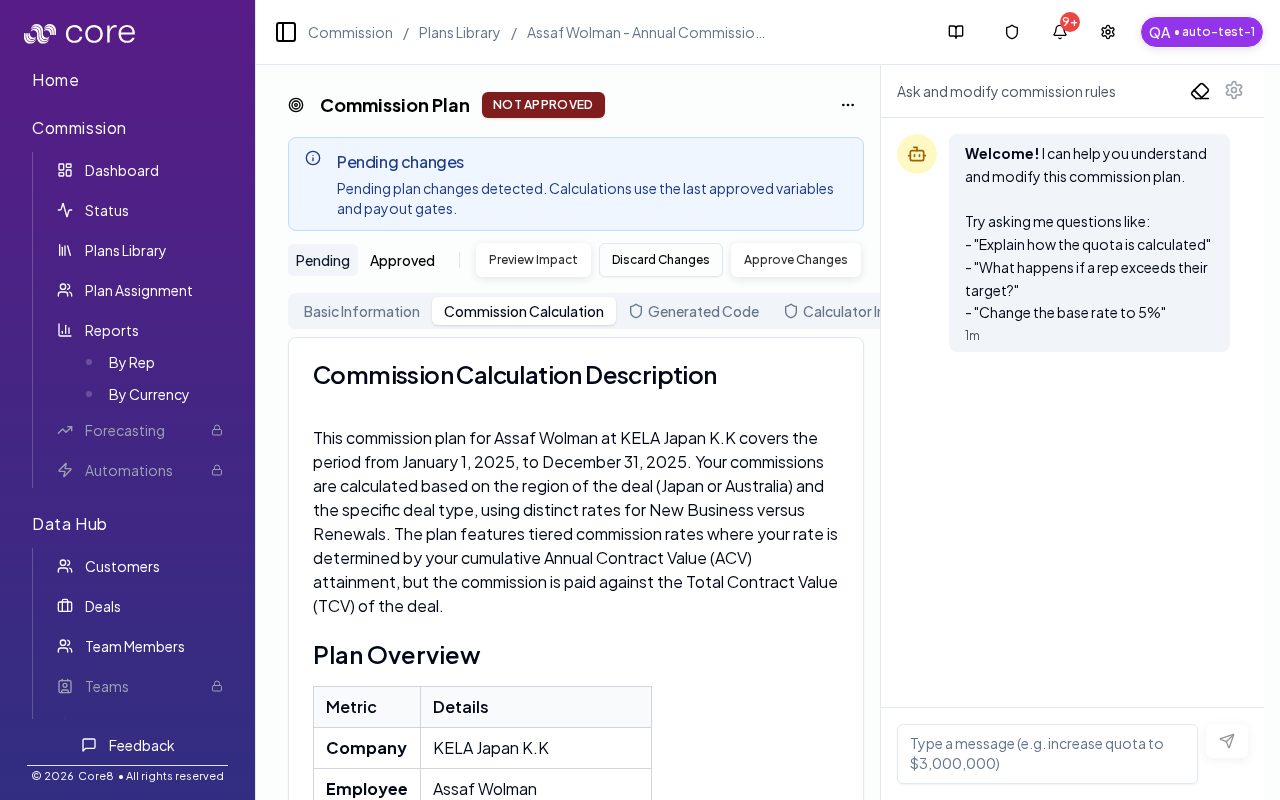
Where to find it
- Open Commission → Plans Library.
- Open a plan:
/{orgId}/commission/plans-library/{planId}. - Select Commission Calculation.
Explain vs modify
When you select text in the commission calculation content, you can ask the assistant to:- Explain: clarify what the text means.
- Modify: propose a change to the plan logic or wording.
Recommended workflow
- Highlight the specific sentence/section you want to understand or change.
- Choose Explain or Modify.
- Review the assistant’s response and the updated calculation description (if modified).
- If changes are staged as pending plan changes, review and approve them before they affect calculations.
How to verify a chat-driven change is staged
- After you click Modify, confirm the calculation text updates and the plan shows a pending changes state.
- Switch between the Pending and Approved views (when available) to confirm what would change if you approved.
- If you approve changes, spot-check one known deal’s Calculation view to confirm the new approved logic is being used.
Keeping control with approvals
If a chat-driven change results in pending plan changes, those changes still follow the normal approval workflow. Review and approve before they affect calculations.Advanced controls
- Rollback: if a modify response makes an unwanted change, use the rollback action on that message to restore the prior version.
- Clear history: use the eraser icon to clear the chat history for this plan.
- Model selection: open the settings menu to choose a model (options can vary by environment).
Common issues
- Chat suggestions do not apply: make sure you selected the relevant text range and that the change created a pending edit.
- Edits did not change calculations: changes must be approved to take effect; then re-check the deal’s Calculation view.
- The assistant misunderstands plan language: provide a concrete example (a deal + expected payout) and refine iteratively.