

What you can do on this page
- Spot commission health issues across the team (no quota, no data, currency mismatch, etc.).
- Compare quota progress for a specific period or across periods.
- Filter by department/role and search to focus review.
- Recalculate commission for selected team members (period-by-period).
- Export a filtered view for close and exception tracking.
Under the hood
Under the hood
- Recalculate selected: runs recalculation work for the chosen period + selected team members.
- What you’ll see: recalculation runs in the background. The table updates when results land; if you navigate away, use Notifications and Settings → Integrations → Logs (if enabled for your org) to confirm completion/errors.
- Downstream impact: updated results flow back into dashboards, reports, and deal detail views after completion.
- Common failure modes: missing inputs for the period (quota/data), permission limits, or delays while jobs run.
- How to verify: see How to verify recalculation worked below.
- If it fails: use the failure message to identify the blocker (missing data/permissions) and retry after resolving it.
Access
- Open Commission → Status.
- URL:
/{orgId}/commission/status
What you’ll see
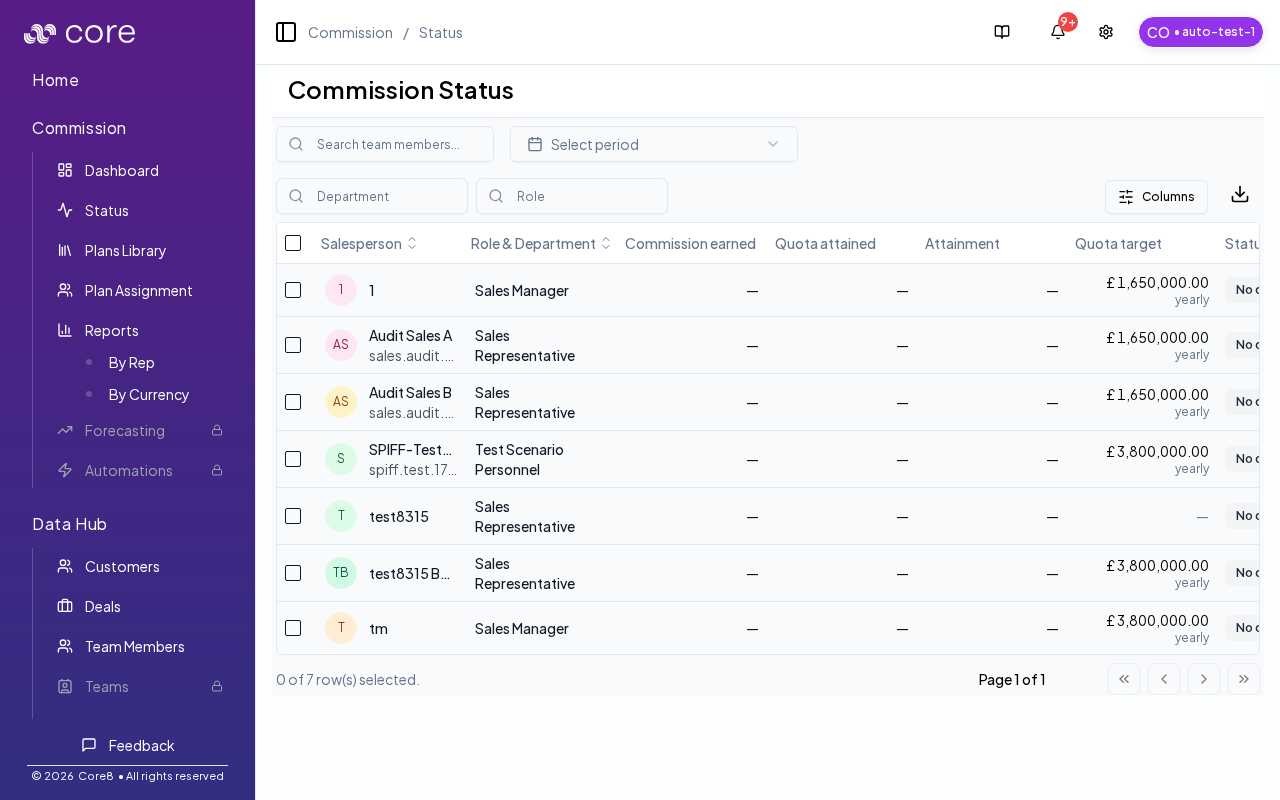
- One row per salesperson with role/department context.
- A high-level status badge (for example: achieved, behind, no quota, no data, currency mismatch).
- Quota and progress metrics (columns can be customized).
Filters and controls
- Period selector (supports “Show all periods”)
- Search by name/email
- Department and Role filters
- Column customization (choose which metrics to show)
- Export (all rows or visible columns)
Recalculate selected
Use row selection + the header action to Recalculate commission for the selected team members. For the most predictable results, select a specific period before recalculating (instead of “Show all periods”). Tip: Core8 prompts you to select a period if you try to recalculate while “Show all periods” is selected.How to verify recalculation worked
- Click Recalculate (or Recalculate selected) for a small, known set first.
- Confirm the table updates (statuses/totals change) and the affected deals move out of Waiting/Failed if the input issue is resolved.
- Open one affected deal and confirm the calculation breakdown matches the updated inputs.
- If nothing changes, check Notifications and Settings → Integrations → Logs for failures, then review the deal’s missing gates/inputs.
Common issues
- A deal is stuck in Waiting: open the row to see which eligibility gate/required field is missing, then fix it upstream (Data Hub) or via overrides (if allowed).
- Recalculate did not change anything: confirm the input values actually changed (source vs override) and that you are recalculating the correct period/deal set.
- Too many failures to triage: filter by status/error type, fix the highest-volume blocker first, and re-run recalculation to validate the fix.