When to use this
- You need clawbacks for churn, refunds, or early cancellation clauses.
- You need to reverse or adjust payouts after they were initially earned.
- You want clawback logic to be auditable and explainable.
Recommended approach: Apply a negative adjustment (CLAWBACK)
Use a clawback adjustment when:- a deal is cancelled after commission was earned
- a refund reduces commissionable revenue
- a contract’s early-exit clause triggers repayment of commission
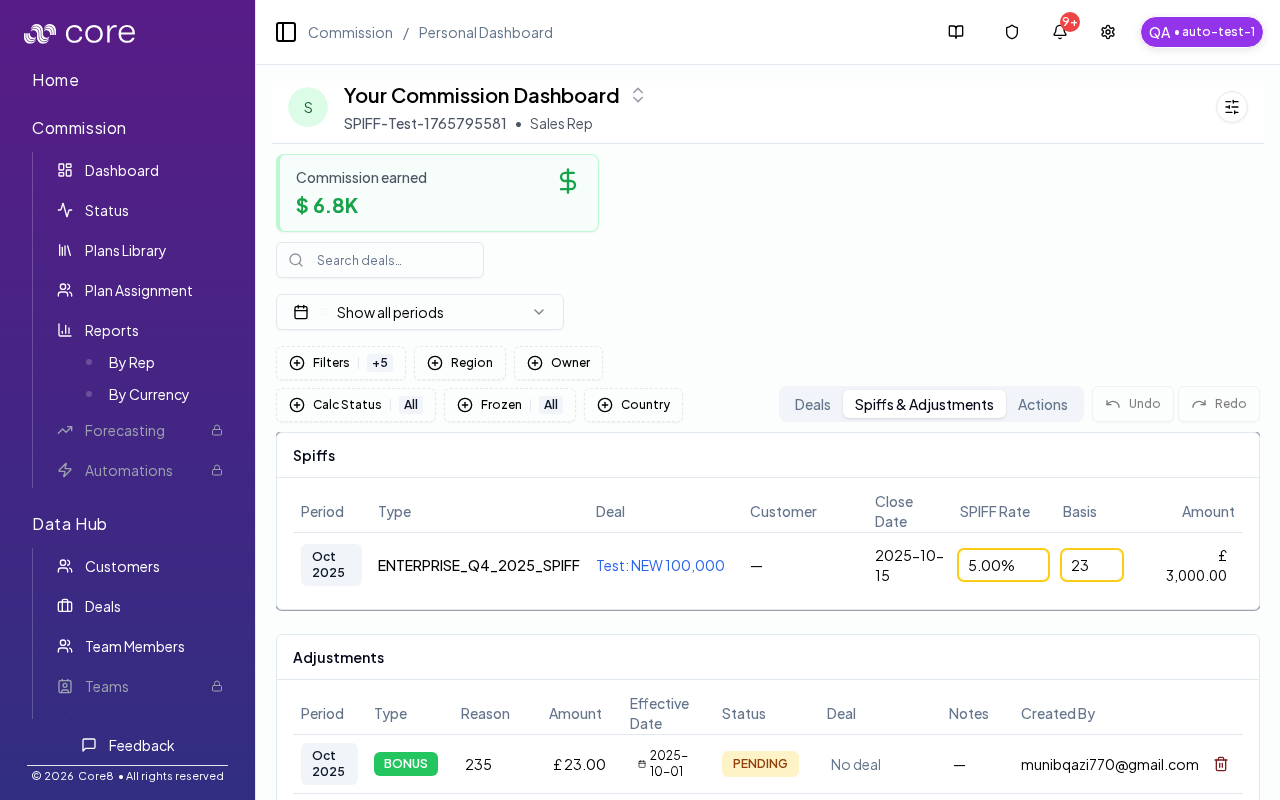
- Go to Commission → Dashboard (manager view).
- Select a specific person and a specific period (don’t use “Show all periods”).
- Open the Spiffs & Adjustments tab.
- Click Add Adjustment.
- Create a new adjustment:
- Type:
CLAWBACK - Amount: negative (for example
-5000) - Period / effective date: the period you want the clawback to impact
- Linked deal (optional): attach to the originating deal when possible
- Type:
- Save.
Example
- Earned commission: $10,000
- Early termination triggers 50% clawback
- Post a
CLAWBACKadjustment of-5,000in the clawback period
Common gotchas
- Decide (and document) which date anchors the behavior: booking date vs invoice date vs payment date.
- If the pattern depends on fields from an integration, confirm those fields actually exist in Data Hub and aren’t overridden.
- Test with a tiny set of deals first, then expand—patterns often “work” but break on edge cases like refunds, partial payments, or split deals.
How to verify
- The rep’s period totals should reflect the clawback as a reduction.
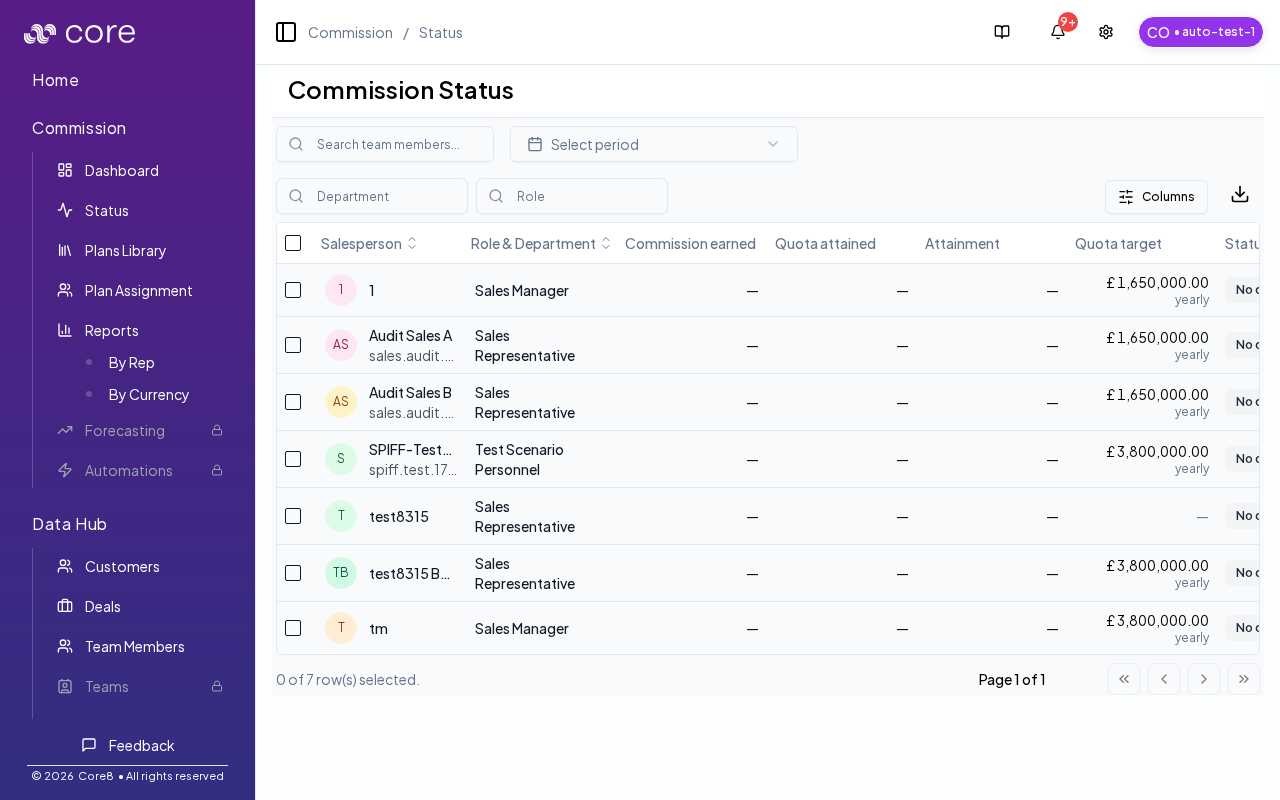
- Use the commission status view to confirm the period state matches your payout process.