

What you can do on this page
- Upload plan documents (PDF/DOCX/MD) into the Plans Library.
- Monitor parsing progress and failures in the Imports tab.
- Open a plan and review extracted structure and calculation content.
- Refine calculation text using plan chat (explain/modify on selected text).
- Move from draft/pending changes to approved updates when ready.
Under the hood
Under the hood
- Imports: uploads create background processing tasks; retries may be needed for low-quality scans or missing pages.
- Pending changes: edits (including chat-driven modifications) can create pending plan changes until approved.
- Common failure modes: unreadable documents, missing required mappings/fields, and approval blocks (validation checks).
- How to verify: see How to verify an import finished below.
- If it fails: use the Imports tab to review failure details and retry with a cleaner / complete document.
1) Upload the plan document
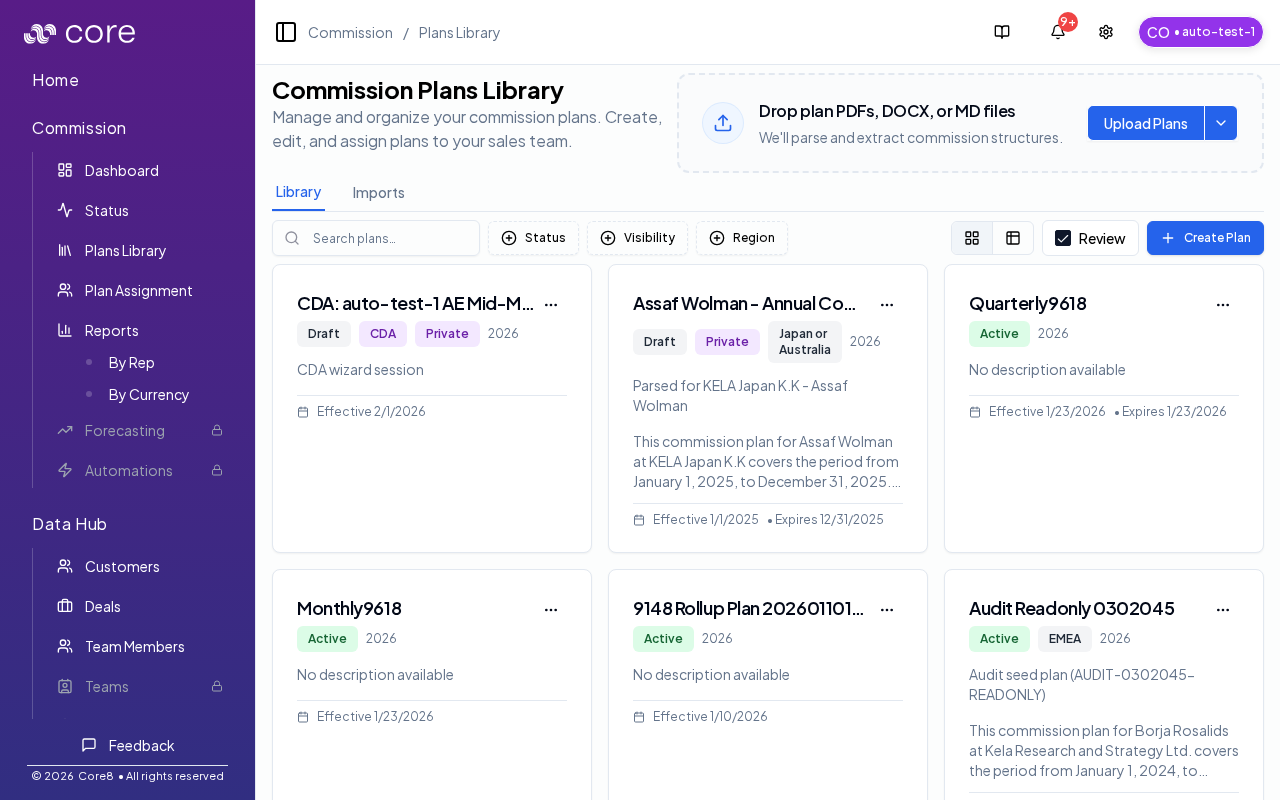
- Open Commission → Plans Library.
- Drag-and-drop plan documents onto the page, or click Upload Plans.
- Optionally toggle Review to enable additional AI review checks during parsing.
2) Track imports
- Use the Imports tab to monitor upload/parsing progress.
- If a plan fails to import, retry after addressing the document issue (missing pages, unreadable scans, etc.).
How to verify an import finished
- Upload your plan document and note the plan name Core8 creates.
- Open the Imports row for the upload to confirm it finished successfully (or to view errors/warnings).
- Open the created plan in the Plans Library and verify: effective dates, selection rules, and at least one example calculation.
- If the import failed, fix the document (missing tables/definitions) and re-upload; if it succeeded but results look wrong, refine in Plan Chat and re-approve.
3) Open the plan to review details
From the library grid/table, click the plan to open:/{orgId}/commission/plans-library/{planId}
4) Refine with plan chat (Commission Calculation tab)
The plan’s Commission Calculation tab shows the plan content and a chat assistant side panel (on large screens).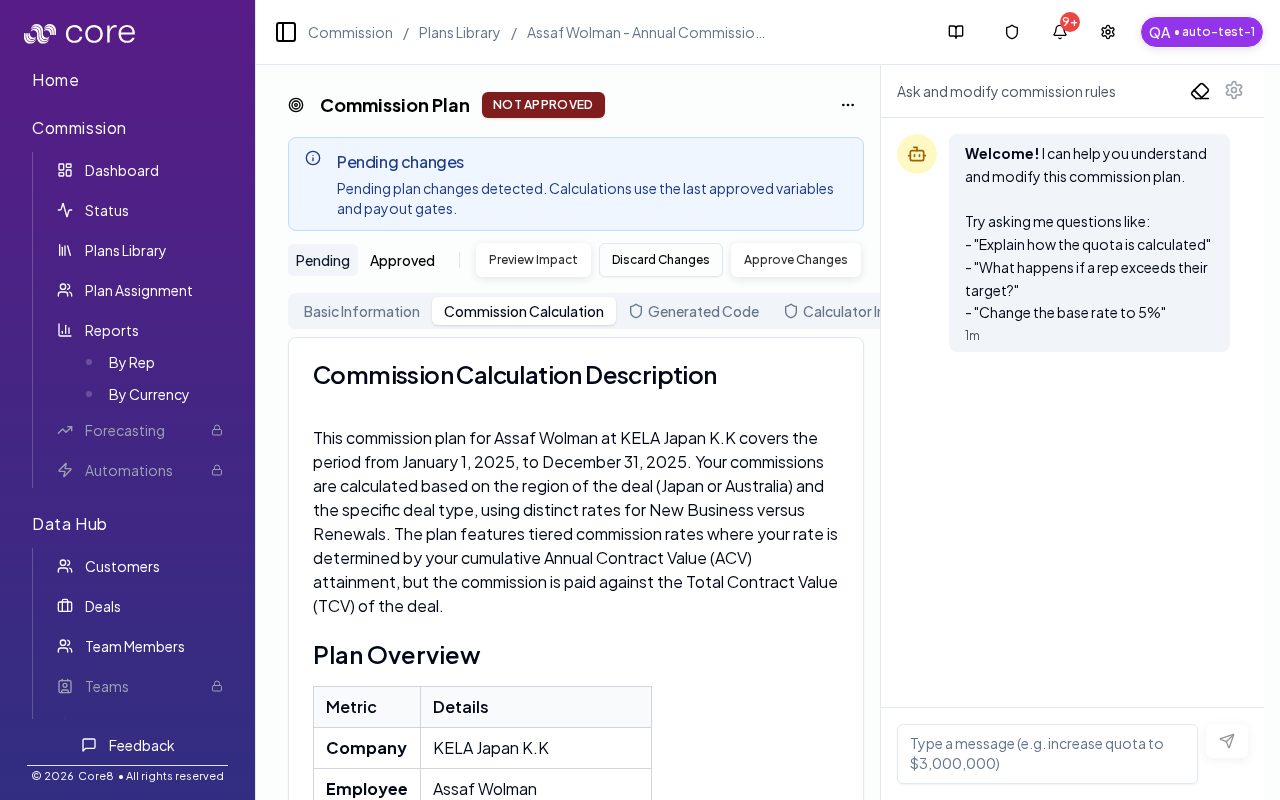
- select text and ask the assistant to explain it, or
- select text and ask the assistant to modify it.
Common issues
- Import fails or stalls: check the Imports row for errors/warnings (missing pages, unreadable scans) and retry with a cleaner/complete document.
- The extracted logic looks wrong: use Plan Chat to clarify ambiguous sections and then approve changes; validate on a single known deal.
- The plan does not affect payouts: confirm plan dates/selection rules and that reps are assigned to the plan for the relevant period.