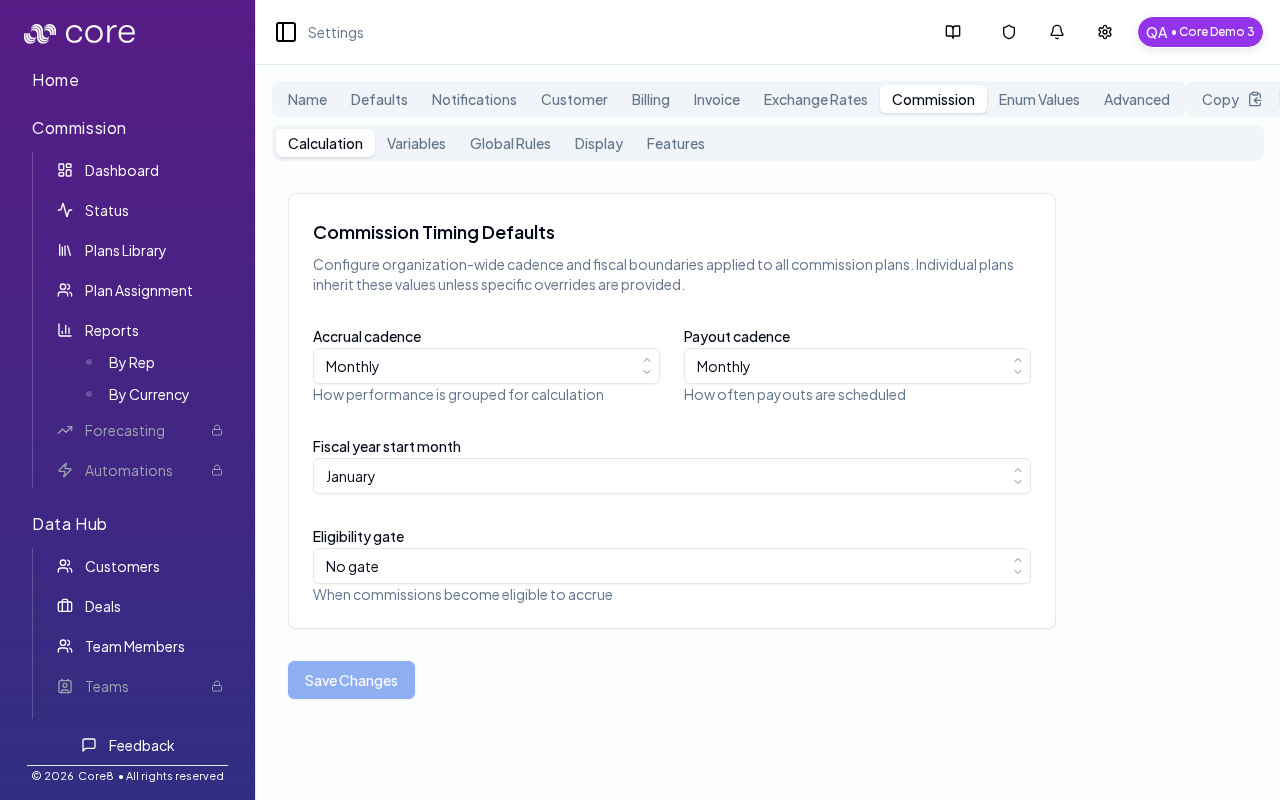
Choose Global Rules when you need org-wide parsing guardrails that should apply across many plans (normalization, interpretation, exclusions). Before you add a rule, decide whether it truly applies across plans (global) or belongs in a specific plan/variable prompt. After changes, verify by importing a new plan (or reparsing one existing plan) and confirming the generated plan reflects the rule.

When to use this

  • You want org-wide parsing guidance applied consistently across plans.
  • You need a single place to manage global mapping and normalization rules.
  • You’re troubleshooting plan parsing differences across similar plans.
Important behavior:
  • Global Rules apply to future plan generations.
  • They do not change existing plans that were already created.
Commission settings

When to use Global Rules

Use Global Rules for cross-cutting policies that should apply to most plans, for example:
  • “If the contract says amounts received, use payment-received timing.”
  • “Do not infer quota credit unless explicitly granted.”
  • “If tables conflict, prefer explicit definitions and surface an open question.”

When not to use Global Rules

Avoid Global Rules for variable-specific logic (those belong in variable prompts / plan configuration), for example:
  • deal type classification rules
  • enum mapping details
  • product bucket definitions
  • how to compute commissionableAmount for a specific deal category

Tips for writing good Global Rules

  • Keep rules short, stable, and unambiguous.
  • Prefer “do / do not” wording over long explanations.
  • Don’t include plan-specific numbers that only apply to one contract.

How to apply changes to an existing plan

Because Global Rules only affect future parsing, you have two options for existing plans:
  • Reparse the plan document (so the plan is regenerated with the new rules), then review and approve pending changes.
  • Edit the plan directly in the plan editor (including using plan chat), then approve changes.

How to verify

  1. Update a rule in Settings (Organization) → Commission.
  2. Pick a plan document that should be affected and reparse it (or import a new similar plan).
  3. Review the plan’s pending changes and confirm the generated text/logic reflects the rule.
  4. Spot-check a known deal’s Calculation view (before approving, if you use preview tooling; after approving, if you apply changes) to confirm outcomes match your intent.

Common gotchas

  • Decide (and document) which date anchors the behavior: booking date vs invoice date vs payment date.
  • If the pattern depends on fields from an integration, confirm those fields actually exist in Data Hub and aren’t overridden.
  • Test with a tiny set of deals first, then expand—patterns often “work” but break on edge cases like refunds, partial payments, or split deals.