Skip to main contentFollow this guide to connect HubSpot to Core8. It covers required permissions, the exact configuration steps, and how to verify the sync.
What you’ll do
- Connect HubSpot to Core8.
- Configure pipeline scope and required field mappings.
- Verify sync results in Core8 and troubleshoot common issues.
Access
- Only managers can manage integrations.
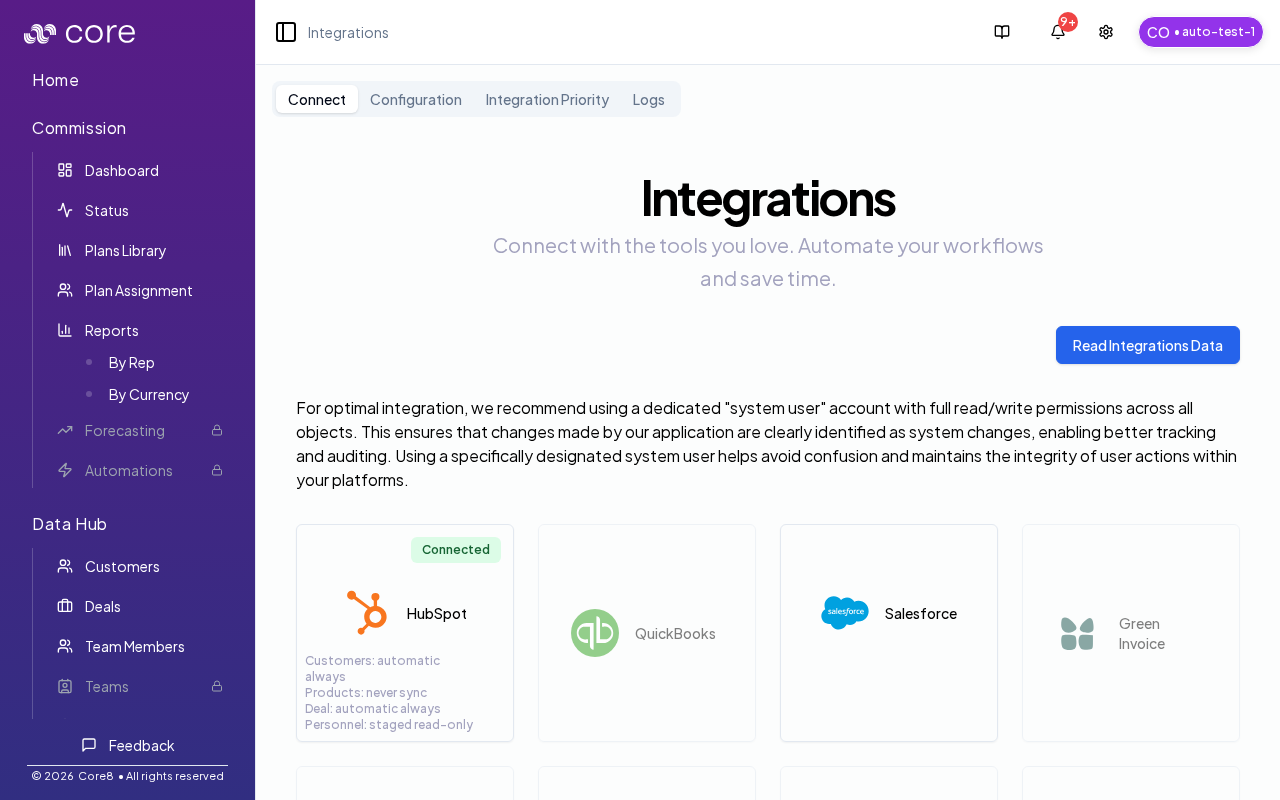
- Open Settings → Integrations (URL:
/{orgId}/integrations).
Connect HubSpot
- In Settings → Integrations, click the HubSpot card.
- In the Connection tab, click Connect to HubSpot.
- In HubSpot, choose the correct account/portal and approve the authorization.
- You’ll be redirected back to Core8; confirm the status shows Connected.
Tip: To connect a sandbox environment (if available for your org), use the dropdown next to the connect button and choose Connect to Sandbox.
After connecting, open the Configuration tab on the HubSpot integration page (/{orgId}/integrations/hubspot?view=config) and:
- Select which HubSpot pipelines to sync deals from.
- Map HubSpot deal stages to Core8 values (required).
Pull CRM data into Core8
After connecting, trigger a sync:
- Go back to Settings → Integrations.
- Click Read Integrations Data.
Then validate your synced data in:
Troubleshooting
- Wrong HubSpot account authorized: use Reconnect (or disconnect, then connect again) from the HubSpot integration page.
- Permission errors: only managers can configure integrations.
- Data missing or stale: check the integration’s Logs tab (
?view=logs) in Core8.
- Need to find a specific record quickly: use the HubSpot integration’s Search tab (
?view=search).
Related pages

