

What you can do on this page
- Browse customers imported from connected systems.
- Identify missing required data in the Gap Report tab.
- Review duplicates and mapping issues across integrations.
- Investigate errors that affect customer records.
- Export/import customers for reconciliation workflows (where enabled).
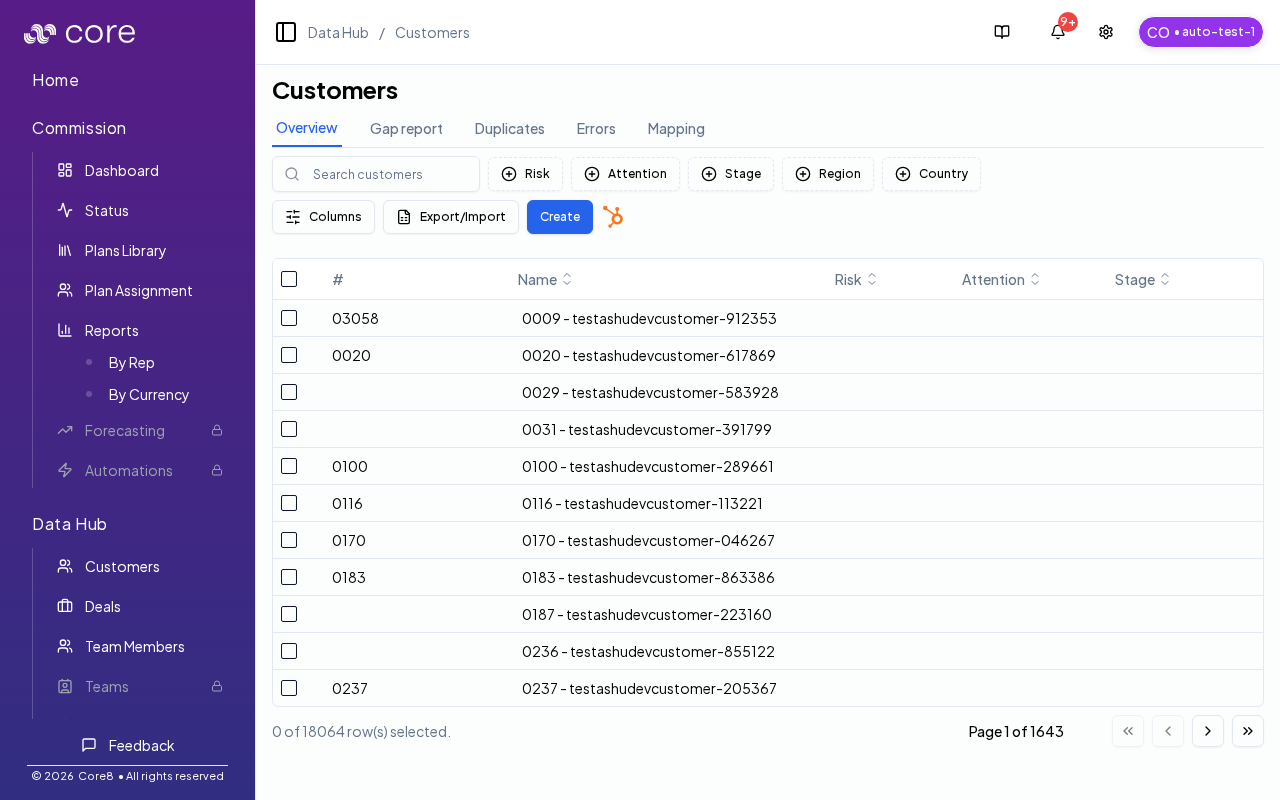
Overview table
On the Overview tab, you can:- Search customers and filter by common attributes (for example risk, attention, stage, region, and country).
- Customize visible columns (per table settings).
- Export/import selected customers (for bulk corrections or reconciliation workflows).
Under the hood
Under the hood
- Tabs: the page uses a URL-backed
tabparameter (for example?tab=gap-report). - Non-overview tabs: Gap report, Duplicates, Errors, and Mapping wait for Core8 to detect which integrations are connected; the page shows a loading state until that completes.
- Export/import: after an import completes, Core8 refreshes the customers table so you see updated records.
- How to verify: see How to verify customer data looks right below.
- If it looks wrong: check the Errors tab; for integration-related issues, check Settings → Integrations → Logs.
The page uses the
tab query parameter:overview: customer tablegap-report: missing/required data coverageduplicates: suspected duplicate customerserrors: integration issues affecting customersmapping: cross-integration entity mapping
Gap report, duplicates, errors, and mapping
Non-overview tabs load data after Core8 determines which integrations are connected for your org. While integrations are resolving, you’ll see a loading state.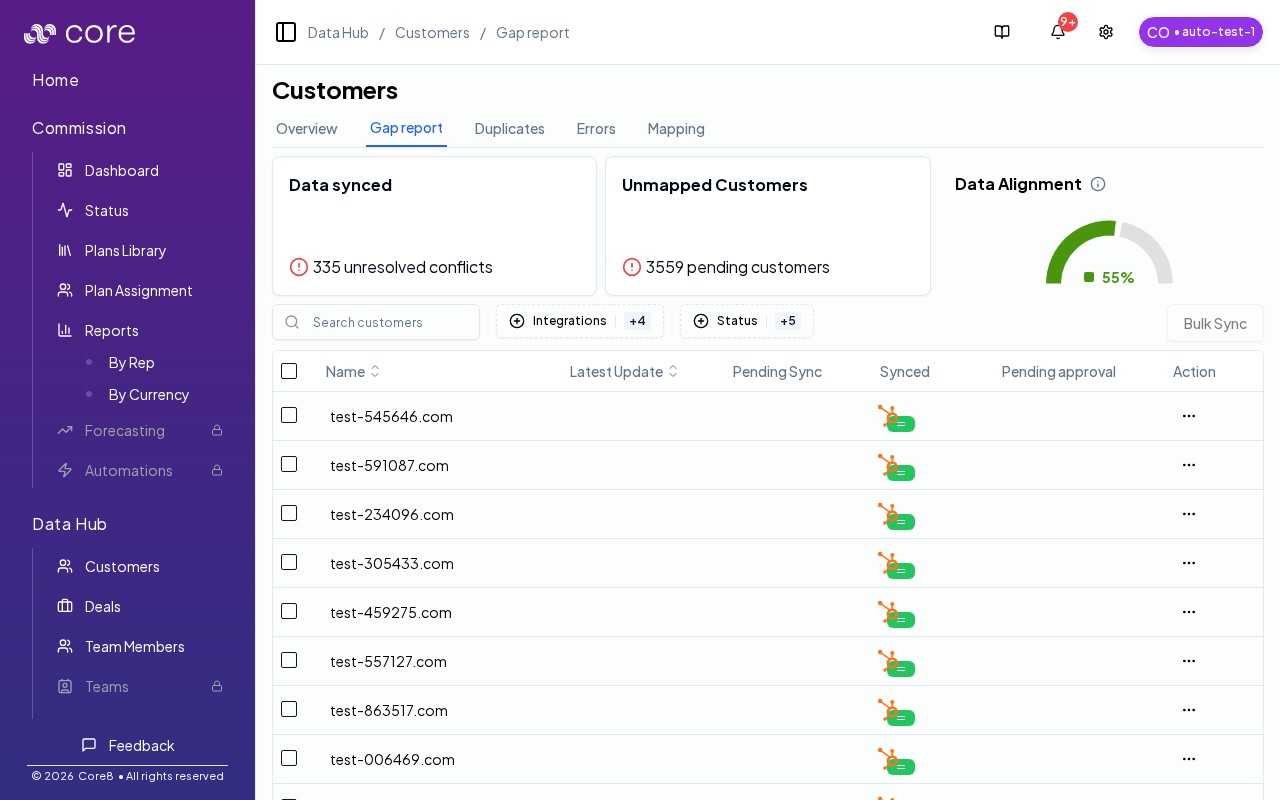
Reading the Gap report
At the top of the Gap report tab, Core8 shows a quick summary:- Data synced: how many customer records have unresolved conflicts across integrations.
- Unmapped Customers: how many customers need review because an integration record is staged for sync.
- Data Alignment: the percent of customers that are fully up-to-date (“active”) out of all tracked customers.
- Filter to the integrations and statuses you care about.
- Open the Action menu to review pending changes, merge, or jump to audit logs.
Bulk Sync (Gap report)
Use Bulk Sync to sync multiple selected customers from one integration:- Select one or more rows in the table.
- Click Bulk Sync.
- Choose Sync data from (the source integration).
- Choose how to handle the data:
- Sync and review data conflicts manually: changes show up as pending approval to review.
- Sync and use as the Master: uses the selected integration as the source of truth for these customers.
- Click Sync all.
How to verify customer data looks right
- Use search + filters to find a customer you know should exist.
- If you just ran a sync, confirm completion in Settings → Integrations → Logs (or Notifications, if enabled).
- Open the customer and spot-check the fields your org uses in commission logic (name, external ID, segment/region, owner—whatever you map).
- If you see missing data, use Gap Report and Errors to identify which integration/field is incomplete.
Customer detail pages
Click a customer row to open the customer detail page at:/{orgId}/customers/{customerId}
Customer detail pages use a URL-backed view query param for their sub-tabs (for example ?view=deals).
Customer detail pages focus on the core tabs (Customer + Deals).
Common issues
- A customer is missing or looks incomplete: confirm the record exists in the source system and that your integration filters include it; then run the per-integration sync.
- Duplicates appear: check whether multiple sources are creating the same logical customer; adjust matching rules/priority to pick one source of truth.
- Related deals are not linking to the right customer: verify the customer identifier used on deals (domain/account ID) and whether an override is forcing a link.